¶ TradeGrub Login Options
TradeGrub provides three types of login options to make accessing the platform easier and more flexible for users. These options are:
- Local Login (Email and Password)
- Social Login (Google)
- Social Login (Apple)
¶ Two-Factor Authentication (2FA)
TradeGrub offers an additional layer of security with Two-Factor Authentication (2FA), available for all login options. Users can enable 2FA via an Authenticator App for:
- Local Login (Email-Based): Enhance security by requiring a verification code generated by an Authenticator App during login.
- Social Login (Google): Use an Authenticator App for an additional layer of security.
- Social Login (Apple): Secure your account further with an Authenticator App.
Recommendation: Enabling 2FA is strongly advised for all accounts to enhance security.
¶ Enabling 2FA
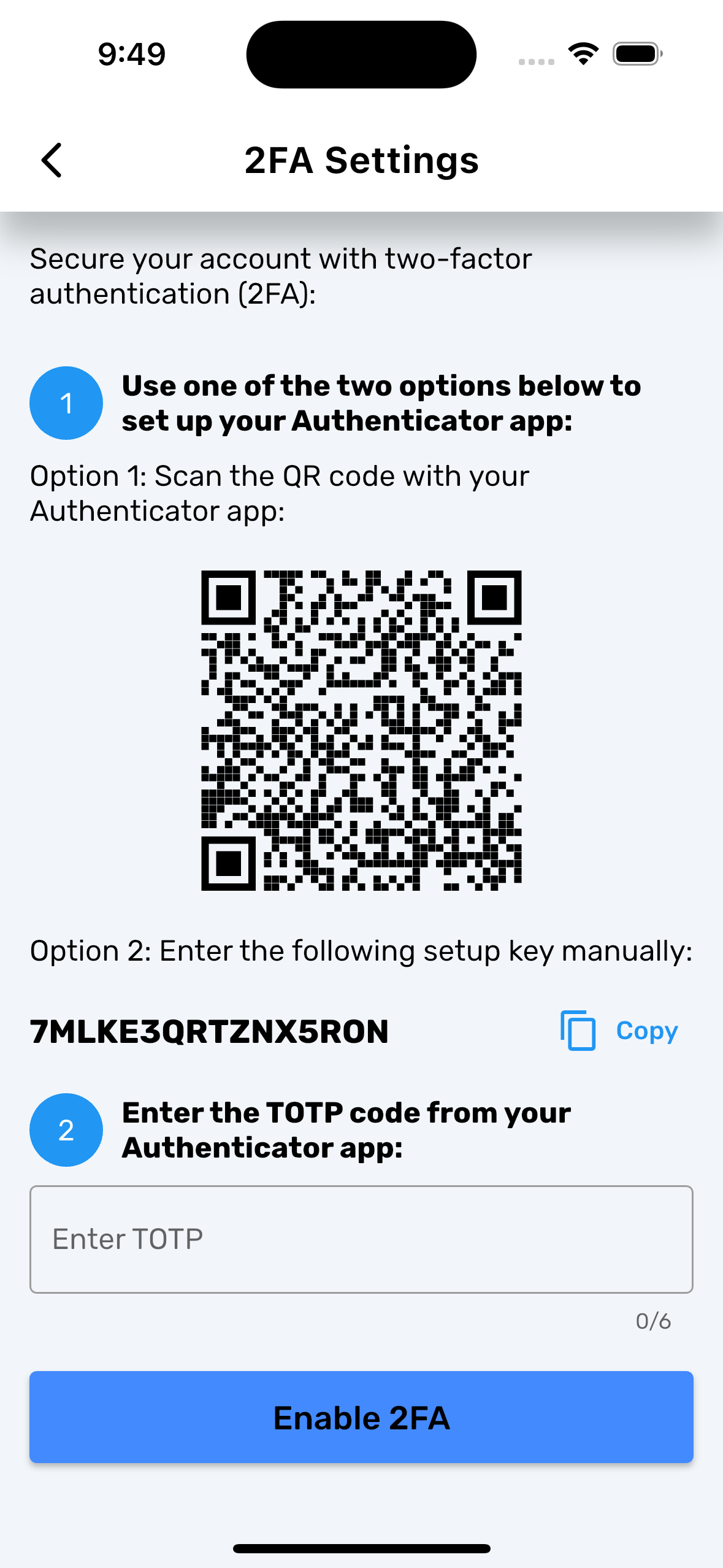
- After Sign In, Navigate to Preferences -> Two-Factor Auth (2FA).
- Select Enable Two-Factor Authentication.
- Scan the provided QR code using an Authenticator App (e.g., Google Authenticator, Authy, Microsoft Authenticator) or use the setup key.
- Enter the verification code generated by the app to complete the setup.
- Save your backup codes securely for recovery purposes.
Note: 2FA significantly enhances your account security by requiring a time-based verification code in addition to your password or social login.
¶ Sign Up
¶ Local Signup (Email-Based)
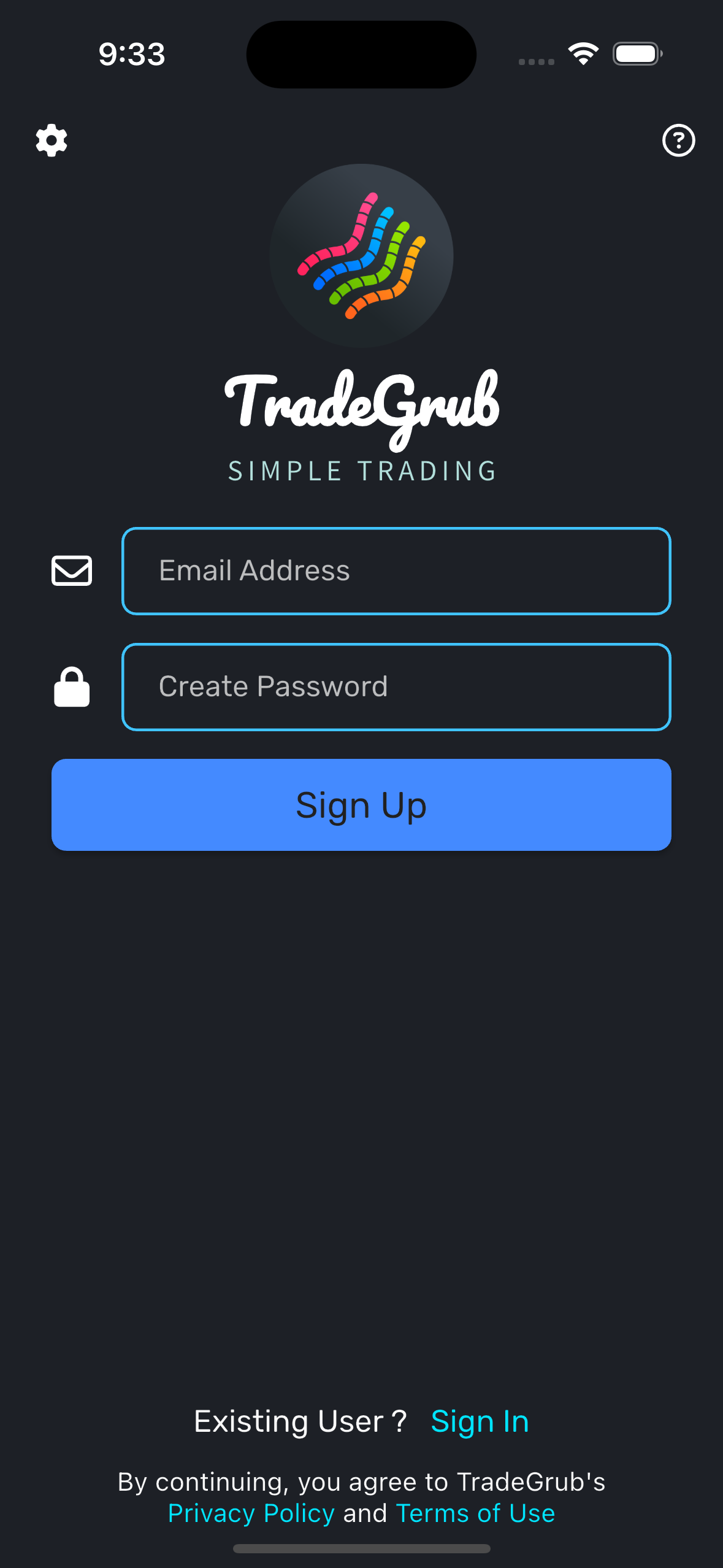
Users can sign up using the Local Email-Based Signup option. During the signup process:
- Users must provide their Email address and create a password.
- The password must meet the platform's security requirements, which are displayed during signup.
- Users will need to verify their email address to complete the signup process.
This method allows users to securely create their credentials directly on the platform.
Note: You are not required to sign up for social logins. However, social login is recommended for ease of use, faster access, and enhanced security/privacy.
¶ Sign In
¶ Local Login
For users who signed up with email and password:
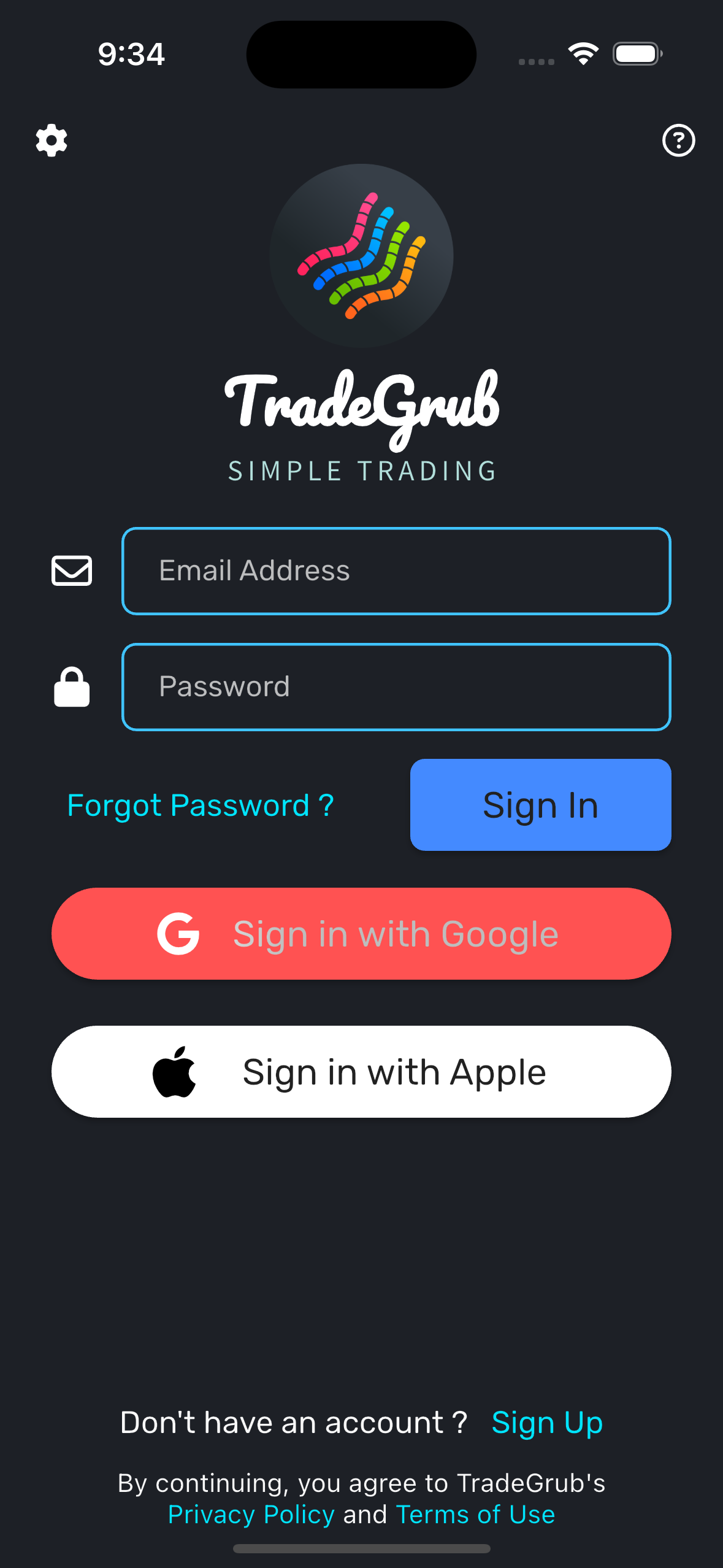
- Sign in using your Email address and Password.
- If you forget your password, use the Forgot Password option to reset it.
- Passwords can be changed anytime via the Preferences section.
- If 2FA is enabled, you will be required to enter a verification code generated by your Authenticator App.
¶ Social: Google Login
Sign in using your Google account for quick and seamless access to TradeGrub.
- Leverage an Authenticator App for additional security if 2FA is enabled.
Note: Google Login is available across all devices.
¶ Social: Apple Login
Apple Login is available for users on Apple devices. It offers:
- The ability to Share or Hide your email for privacy.
- An extra layer of security for users concerned about personal data sharing.
- Use of an Authenticator App for enhanced protection if 2FA is enabled.
Note: Apple Login is only available on Apple devices.
¶ Enhanced Privacy with Apple Login
On Apple devices, users can sign in with Apple Login for enhanced privacy. With Apple Login:
- You have the option to Share or Hide your email address.
- If you choose the "Hide Email" option, Apple will generate a random email alias to be used for your TradeGrub account.
Important: When using the Hide Email option, the Apple account cannot be linked with Google or Local login since TradeGrub does not receive your real email address, and the alias generated by Apple is unique to the app.
¶ Linking Accounts
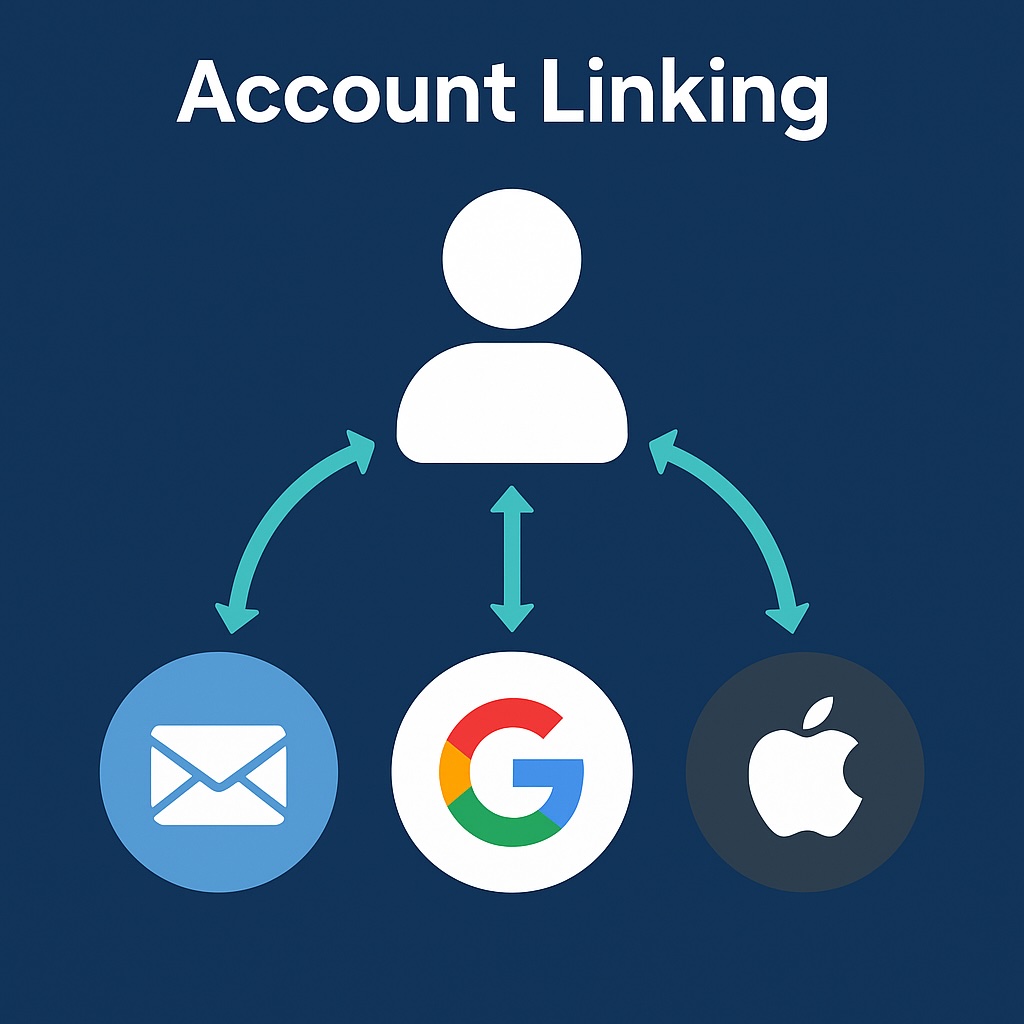
- Users can sign in with Local Login, Google Login, or Apple Login.
- If the same email address is used across login methods, the accounts will be linked, allowing easy switching between login methods.
- If 2FA is enabled for any login method, it will apply when signing in through that method.
Important: If you use the "Hide Email" option with Apple Login, the account cannot be linked to other login methods (Google or Local Login) since the email provided by Apple is randomly generated and hidden from the TradeGrub platform.
¶ Sign Out
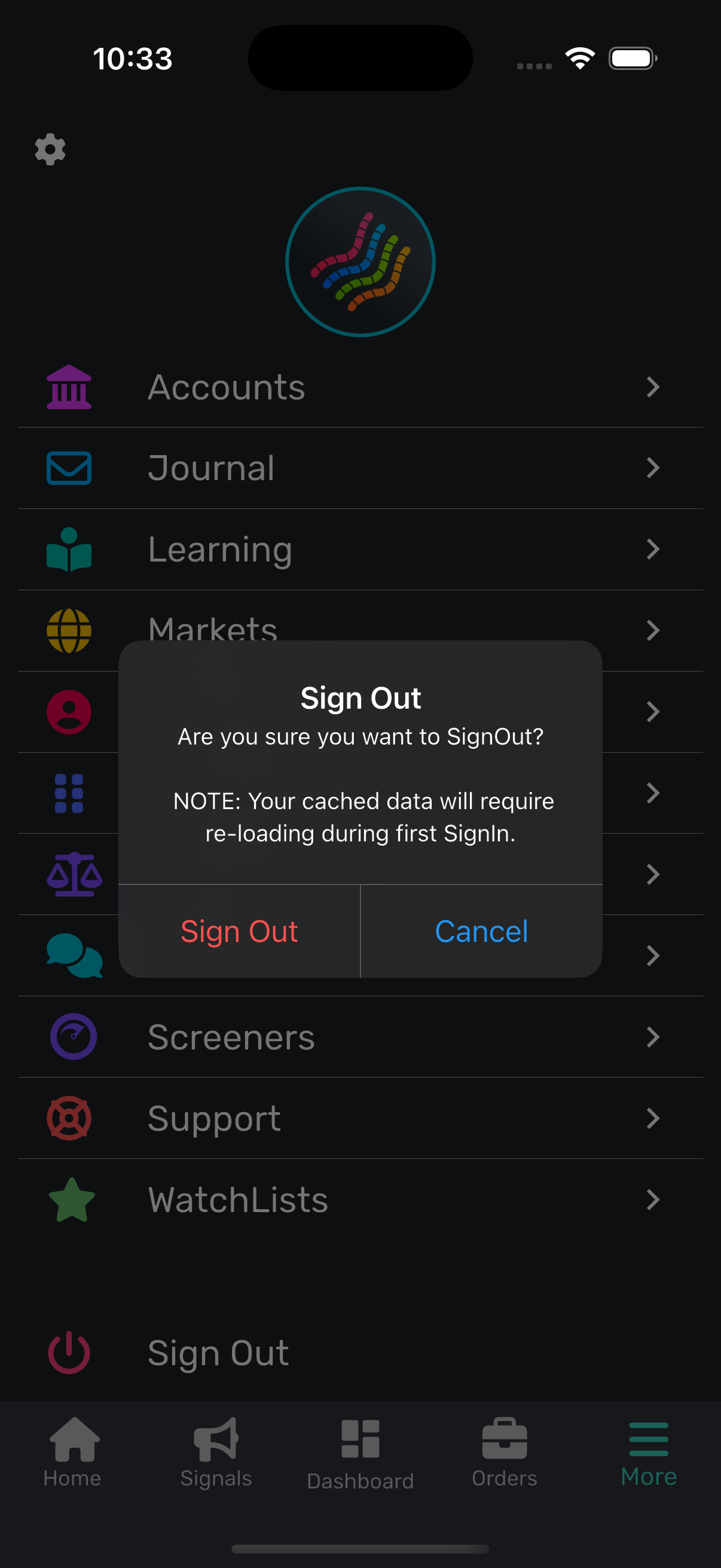
¶ How to Sign Out
- Navigate to More -> Sign Out at the bottom of the screen to log out.
¶ What Happens When You Sign Out
- Signing out clears any device-based cache for your account, requiring a reload of data when you sign in again.
- Any device-specific journal entries will be removed upon signing out. Make sure to export your journal before signing out to avoid data loss.
¶ Admin/Support Remote Sign Out
Admins and Support staff have the ability to forcefully log out users remotely. This feature provides additional control for managing user sessions in cases of security, account recovery, user feature controls, or compliance. Along with remote logout, there is an optional functionality to clear device cache during the forced logout process.
¶ Forgot Password
¶ Overview
The Forgot Password functionality is designed to allow users to securely reset their password if they forget it. This feature is only applicable for local Email logins and does not support social login methods (e.g., Google, Apple).
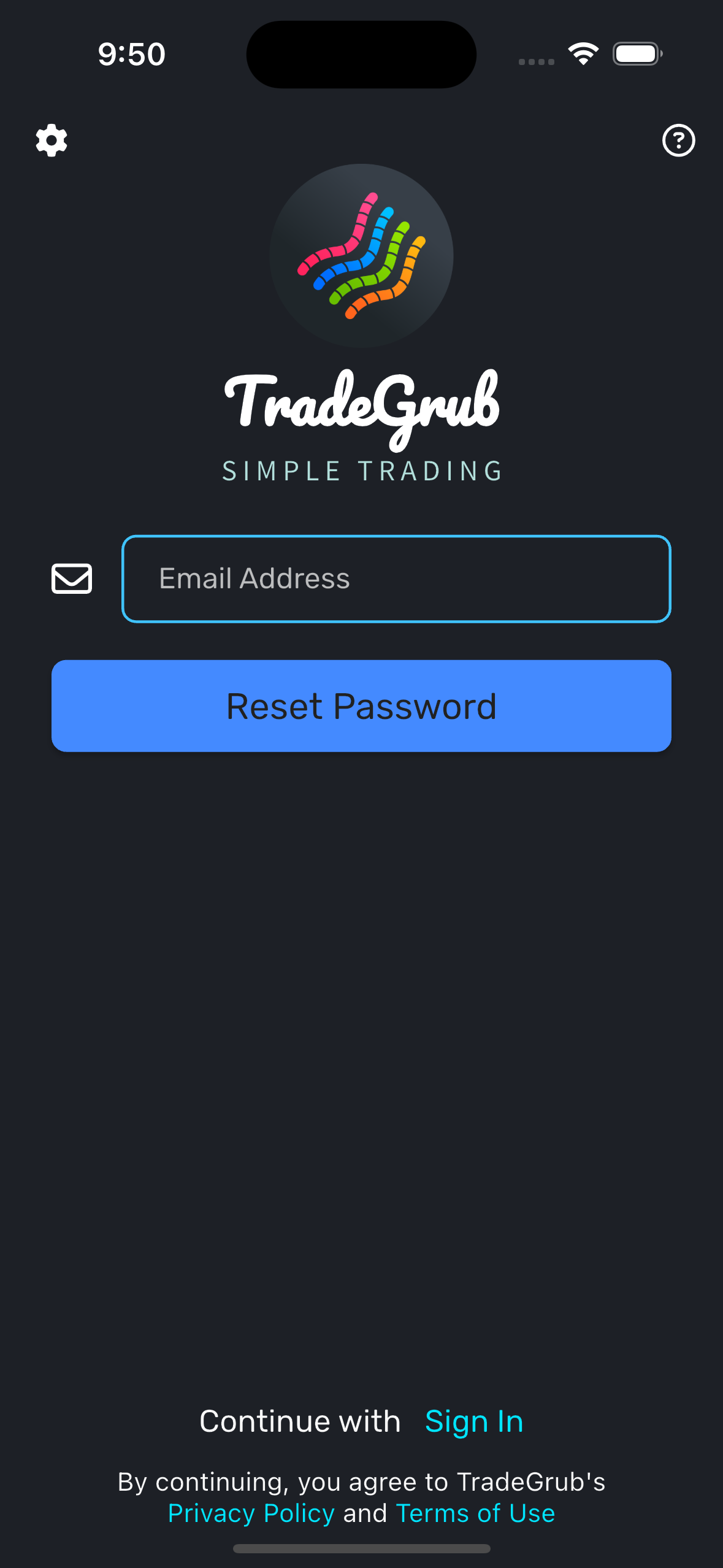
¶ Workflow
-
Request Reset Link
- User navigates to the Forgot Password page.
- Enters their registered Email Address.
- Clicks the Submit button.
-
Verification and Link Generation
- The system verifies if the provided email address is valid and registered.
- If valid, an email with a Reset Password Link is sent to the user's email address.
- The link contains a unique token for security and expires after a specified duration.
-
Reset Password Process
- User clicks the link in the email, which redirects them to the Reset Password Page.
- The user is required to enter a New Password and Confirm Password.
- On submission, the system does NOT validates the input based on password rules.
-
Password Rules Validation
- The system enforces password rules during Sign-In to ensure security.
- Rules are displayed on the Reset Password Page for guidance.
¶ Password Rules
- Minimum 8 characters in length.
- Must include at least 1 uppercase letter (A-Z).
- Must include at least 1 lowercase letter (a-z).
- Must include at least 1 number (0-9).
- Must include at least 1 special character (e.g., !, @, #, $, &, *, ~ ).
¶ Errors
-
Invalid Email Address
- Error message: "Email address is not registered."
-
Expired or Invalid Reset Link
- Error message: "The reset link is invalid or has expired. Please request a new link."
-
Password Validation Failure
- Error message: "Password does not meet security requirements."
-
Success Confirmation
- Message: "Your password has been successfully reset. You can now log in with your new password."
¶ Notes
- Reset link validity is 24 hours.
- For security, the password rules are also validated during Sign-In to prevent weak passwords.